
Download optimized originals again
Bring the originals you need back to your device
Learn how to download individual clips or all originals, switch to keeping originals locally, and resolve download problems.
Originals removed from the device by storage optimization remain in iCloud. You can download just the clips you need or all the originals you want to use on this device.
Downloads require an internet connection, the same iCloud account that stores the originals, and free space on the device.
1. Download only the clips you need
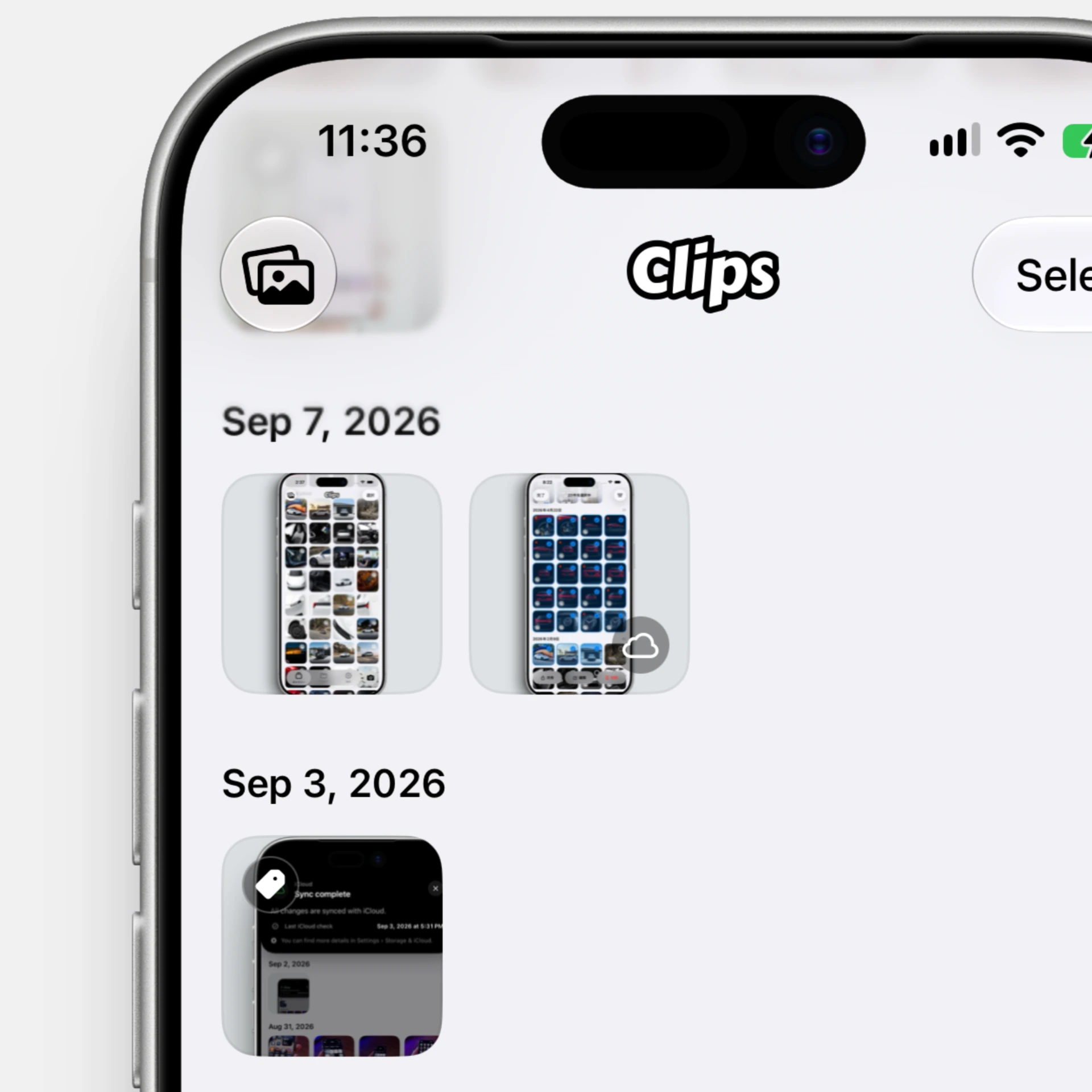
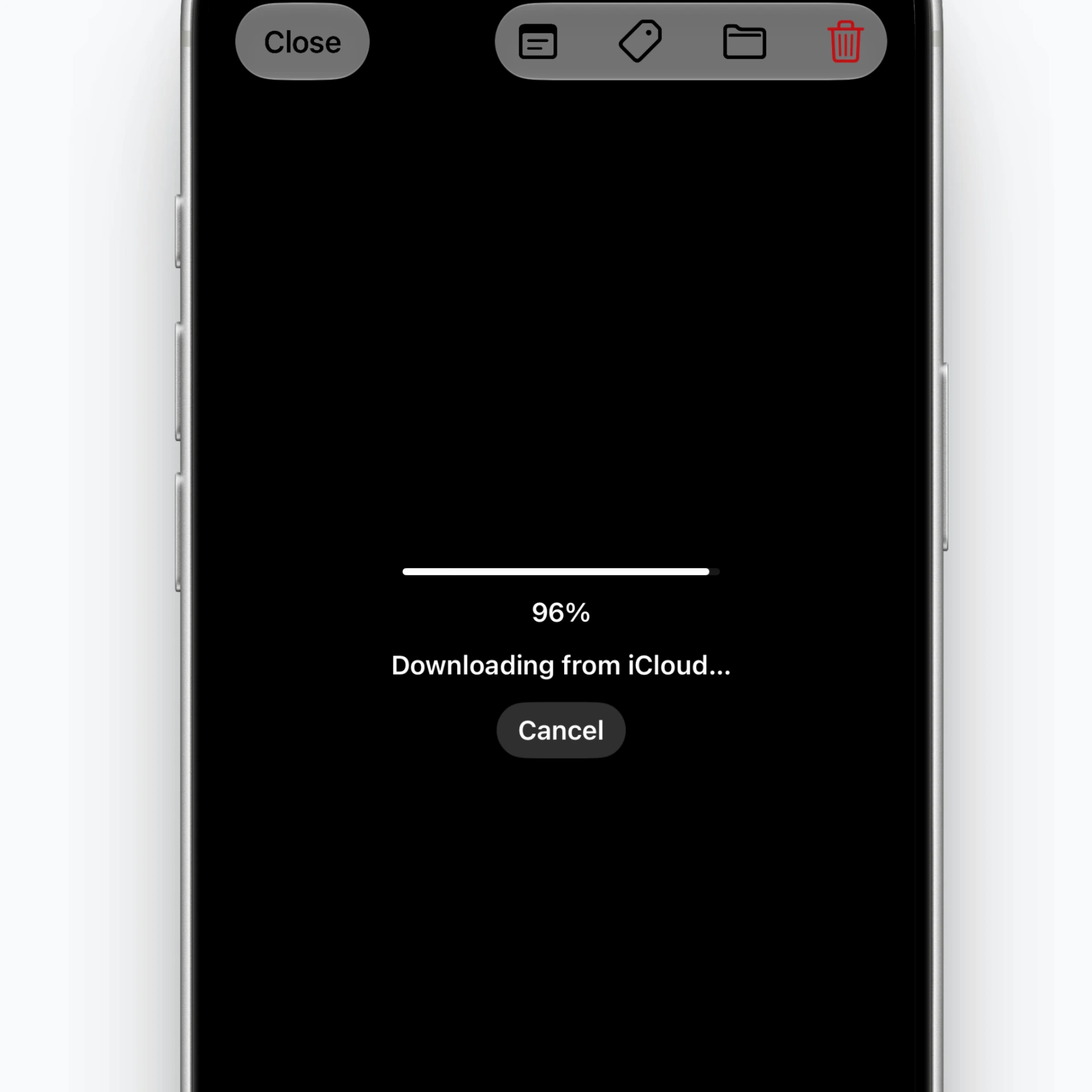
- Open the clip you need in the gallery.
- If the original is not on the device, Clips retrieves it from iCloud.
- Once the download and checks finish, you can use the clip.
Sharing or exporting to Photos may also trigger a download if the original is needed. You can cancel while downloading.
A cloud indicator in the gallery identifies clips whose originals are only in iCloud.
Can I view clips offline?
Clips whose originals are already on the device can be used without internet access.
Clips with originals only in iCloud need internet access to download them. Before traveling, open and download any clips you will need.
If an offline message appears, reconnect and tap Retry on the same screen.
2. Download all originals and keep them on this device
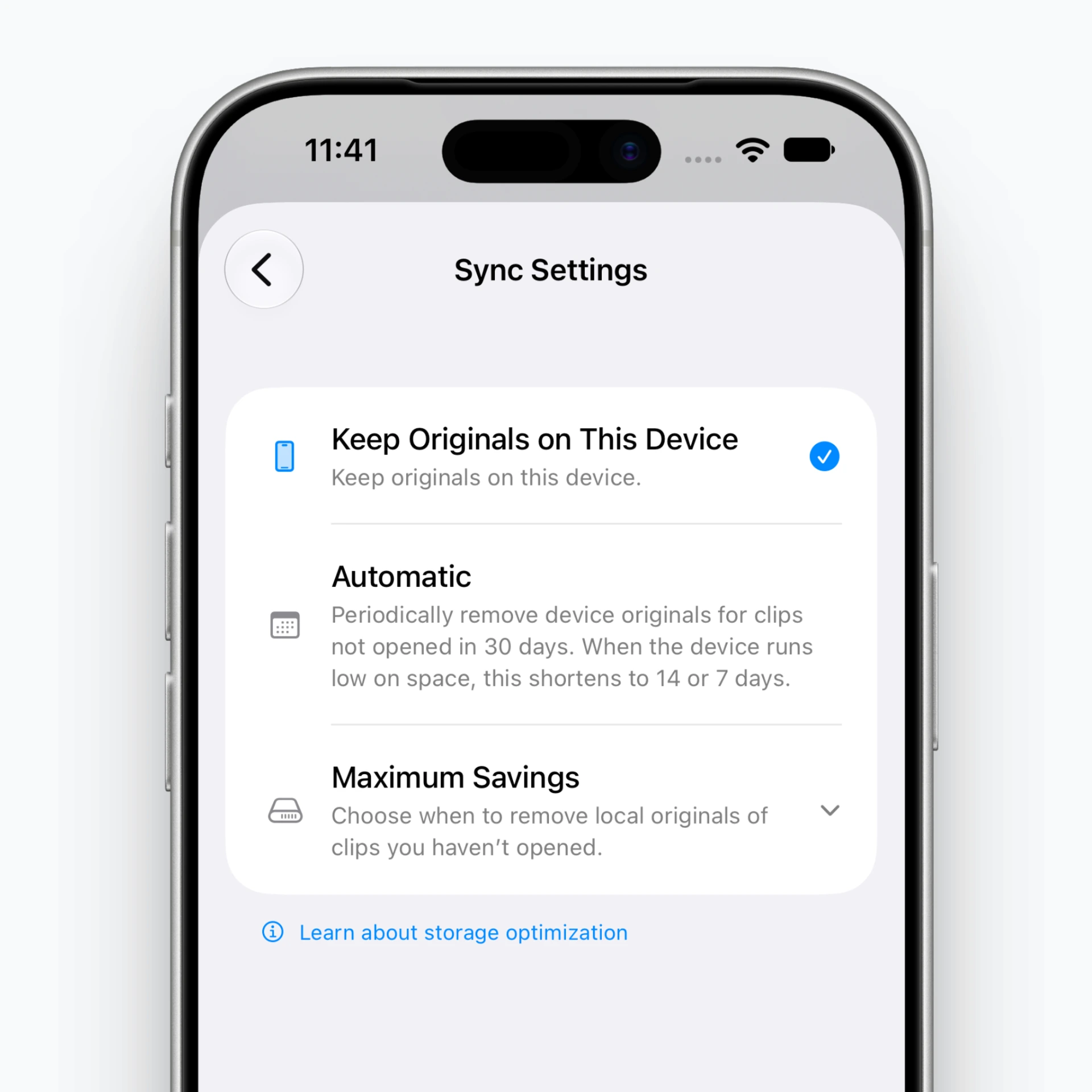
- Open Settings → iCloud → Sync Settings.
- Select Keep Originals on This Device.
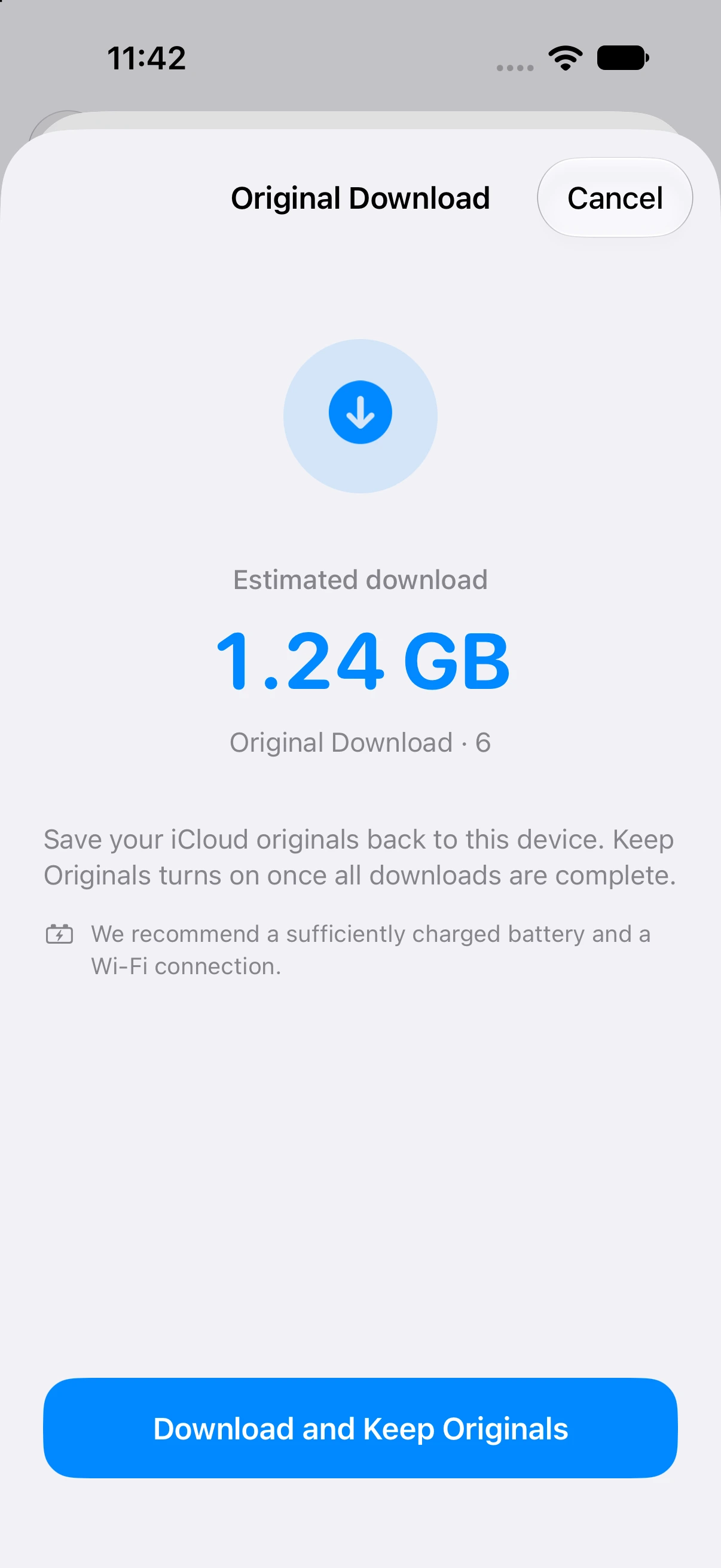
- On the original download screen, check the Estimated Download size and number of originals.
- Tap Download and Keep Originals.
- Keep the app open until all downloads finish.
The mode switches to keeping originals after every original has been saved on the device. If all originals are already local, it may switch without downloading anything.
Keeping originals stops automatic removal of local originals to free up space. It does not turn off iCloud sync.
3. What can I check during downloads?
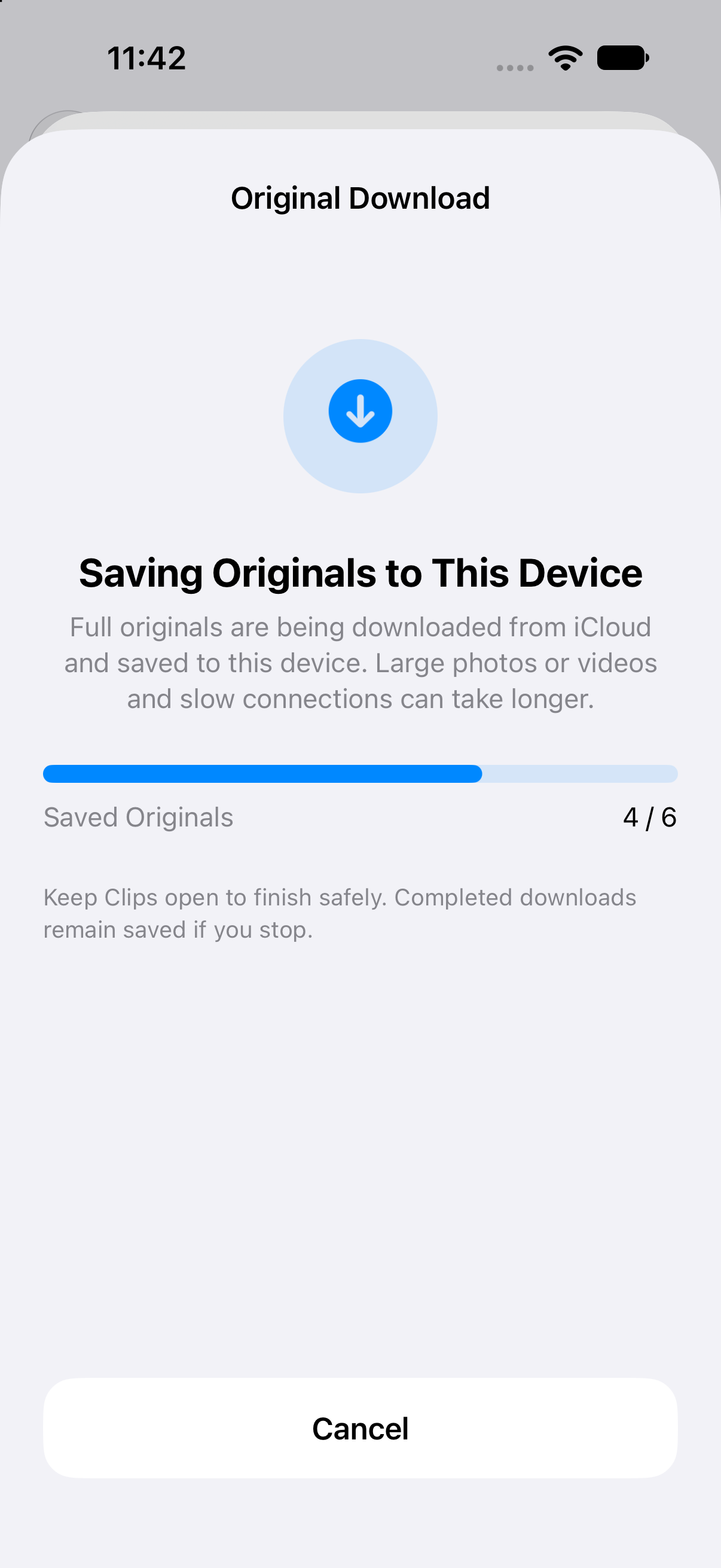
The progress screen shows the overall progress bar and number of originals saved.
Clips downloads the complete originals from iCloud and saves them on the device. Many large photos or videos, or a slow connection, can take longer. The completed count may not change until an individual original finishes saving.
We recommend sufficient battery charge, Wi-Fi, and keeping the app open while you wait. The screen is kept awake during downloads.
If I cancel, will downloaded originals disappear?
No. Originals already saved stay on the device even if you tap Cancel.
If you cancel the full download or some originals cannot be downloaded, the mode does not switch to keeping originals; the existing setting remains. Retry targets originals still missing from the device.
While the existing Automatic or Maximum Savings mode remains active, downloaded originals may later become eligible for optimization under that mode’s rules.
4. When originals will not download
I am asked to check my internet connection
Check your Wi-Fi or mobile data connection. Once connected again, tap Retry or reopen the clip.
Wi-Fi is recommended when downloading multiple large originals.
There is not enough storage
Your device needs space to save the originals. Check the required size shown, free up space, and try again.
Some spare space is also needed to save files reliably, so it is best to free up a little more than the exact original size shown.
I see “There was a problem retrieving the original”
If the app asks you to open the device that holds the original, follow these steps:
- Open Clips on another device that still has the original.
- Check that it uses the same iCloud account and has iCloud sync enabled.
- Wait for syncing to finish.
- Return to the device where you wanted to download the original and reopen the clip.
Follow these steps only if that error appears. Not every download failure means an original is missing.
5. Before turning off iCloud sync
If some originals are only in iCloud, a choice screen appears when you turn off sync.
- Download All Originals and Turn Off: Downloads the required originals before turning off iCloud sync. Sync stays on if the download does not finish.
- Turn Off Anyway: Does not delete data on the device or in iCloud, but originals stored only in iCloud cannot be retrieved until sync is turned on again.
- Cancel: Leaves settings unchanged.
To keep using originals offline, finish downloading them first.
Frequently asked questions
Does downloading originals also save them on other devices?
Downloads save originals on this device. Other devices have their own local originals and storage optimization settings.
Does downloading again reduce the space saved?
Yes. Saving originals locally increases device storage use and may reduce the space saved with iCloud.
Does keeping originals turn off iCloud sync?
No. Keeping originals and iCloud sync are separate settings. You can keep originals on the device while continuing to use iCloud sync.
Key takeaways
- Downloading originals requires an internet connection, the same iCloud account, and free space on the device.
- The mode switches to keeping originals only after all originals finish downloading.
- If you cancel or some originals cannot be downloaded, completed downloads remain and the previous mode stays active.
- Keeping originals and iCloud sync are separate settings.