
Optimize storage
Originals in iCloud, more room on your device
Learn how to choose a storage optimization mode, free up space used by local originals, and check the space saved with iCloud.
Storage optimization keeps the originals of clips you have not opened for a while in iCloud and removes only their local originals from this device.
Optimized clips stay in your gallery. When you open or share them and need the original, you can download it from iCloud.
1. Choose a mode that suits you
In Clips, go to Settings → iCloud → Sync Settings.
Storage optimization requires Clips Plus, an available iCloud account, and iCloud sync turned on.
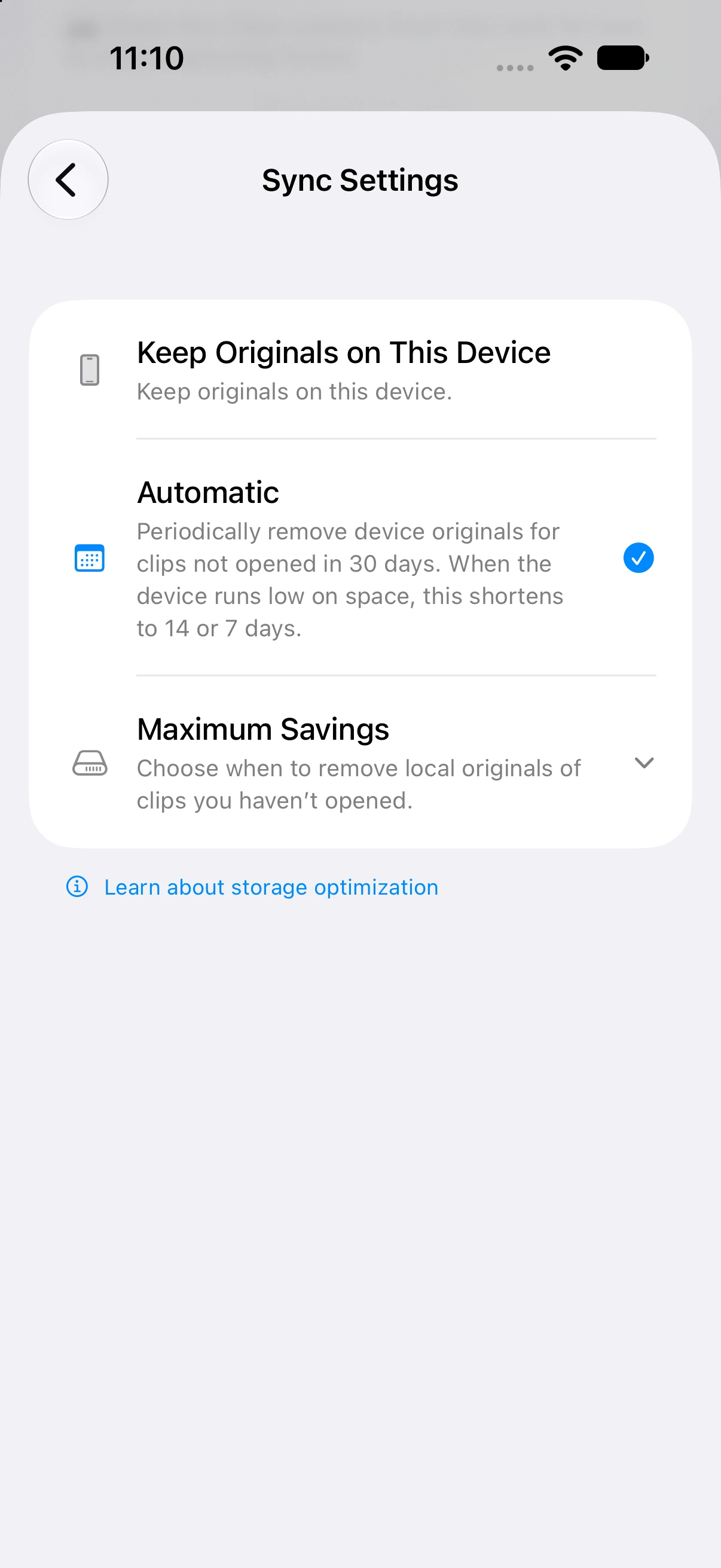
- Mode
Keep Originals on This Device
- How it works
- Does not automatically remove local originals to free up space. You can still use iCloud sync.
- Useful when
- You often need originals without an internet connection
- Mode
Automatic
- How it works
- By default, optimizes clips not opened for at least 30 days. When free space is low, the threshold shortens to 14 or 7 days.
- Useful when
- You want to free up space without managing the period yourself
- Mode
Maximum Savings
- How it works
- Optimizes clips not opened for at least your chosen period of 1–31 days.
- Useful when
- You want to choose the retention period and free up space more actively
| Mode | How it works | Useful when |
|---|---|---|
| Keep Originals on This Device | Does not automatically remove local originals to free up space. You can still use iCloud sync. | You often need originals without an internet connection |
| Automatic | By default, optimizes clips not opened for at least 30 days. When free space is low, the threshold shortens to 14 or 7 days. | You want to free up space without managing the period yourself |
| Maximum Savings | Optimizes clips not opened for at least your chosen period of 1–31 days. | You want to choose the retention period and free up space more actively |
Each mode applies to the current device. You can use different modes on your iPhone and iPad.
How is the time since a clip was last opened calculated?
It is based on when you last opened the clip’s detail screen on this device. If you have never opened it, Clips uses the time it recorded the clip as added.
The waiting period does not restart when you change the setting. Clips that already meet the chosen period may be eligible immediately.
For example, setting Maximum Savings to 1 day targets originals that can safely be removed once a full day has passed since the clip was last opened. It does not remove every clip from yesterday just because the date changed.
2. Start optimizing with Maximum Savings
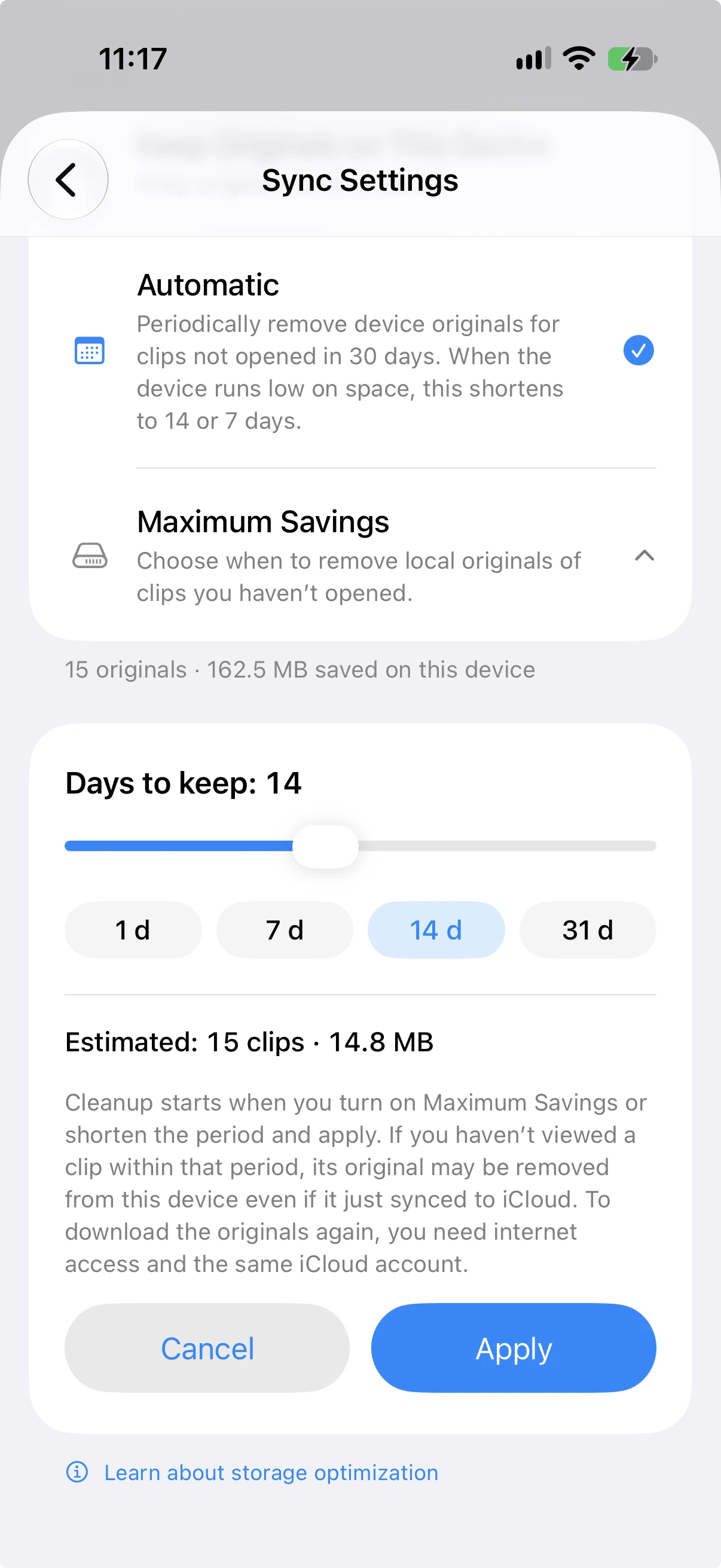
- Select Maximum Savings.
- Choose a retention period using the slider or the 1, 7, 14, or 31 days buttons.
- Check the estimated number of clips and size, then tap Apply.
- On the start screen, check Estimated Space to Free Up and Clips to Optimize.
- Tap Start Optimization to apply the selected mode and period and begin.
When selecting Maximum Savings for the first time or shortening the period, you must tap Start Optimization to confirm the settings and begin. Closing the screen before starting keeps your existing settings. If you already use Maximum Savings and extend the period, the setting may be applied without a separate start screen.
Before you start
We recommend connecting to Wi-Fi and making sure your battery has enough charge.
To use an optimized original again, you need internet access and the same iCloud account that stores it. Download any clips you will need offline in advance.
3. What happens during optimization?
Before removing a local original, Clips checks that the original is safely stored in iCloud. It frees up space by removing local originals after completing these checks.
The progress screen shows:
- Current Task: Whether Clips is checking originals or freeing up device space.
- Progress Bar and Clips Checked: How many of the target clips have been processed.
- Space Freed Up: The actual space recovered during this run.
Not every checked clip is optimized. Originals that cannot be safely confirmed stay on the device, so the space freed up may be less than estimated.
Why it can take time
Some originals need an additional check to confirm they are properly stored in iCloud. Many large photos or videos, or a slow connection, can make this take longer.
While a large original is being processed, the checked count may stay the same for a while. Check the current task message too, rather than assuming the process has stopped based on the count alone.
Additional checks may require Wi-Fi and temporary free space. Originals whose checks cannot finish are left on the device, not forcibly removed.
Can I stop partway through?
Tap Stop to stop this run. Space already freed up remains available, and optimized originals can be downloaded again when needed.
Stop ends only the current run. It does not turn off Maximum Savings, so eligible clips may be optimized later while you use the app.
If some clips were not optimized, check the results screen for the reasons.
4. When does optimization run after setup?
With Automatic or Maximum Savings enabled, eligible clips continue to be optimized in batches while you use the app.
Switching from another mode to Automatic triggers an immediate attempt, but not every eligible clip is processed at once. Work may pause and resume depending on the device’s state and other ongoing tasks.
After a full check, the next check is normally eligible to run when you use the app after 12 hours have passed. Unfinished work, changed settings, or changes in available device storage may lead to an earlier run.
This does not mean optimization runs exactly every 12 hours while the app is closed.
5. Check how much space you are saving
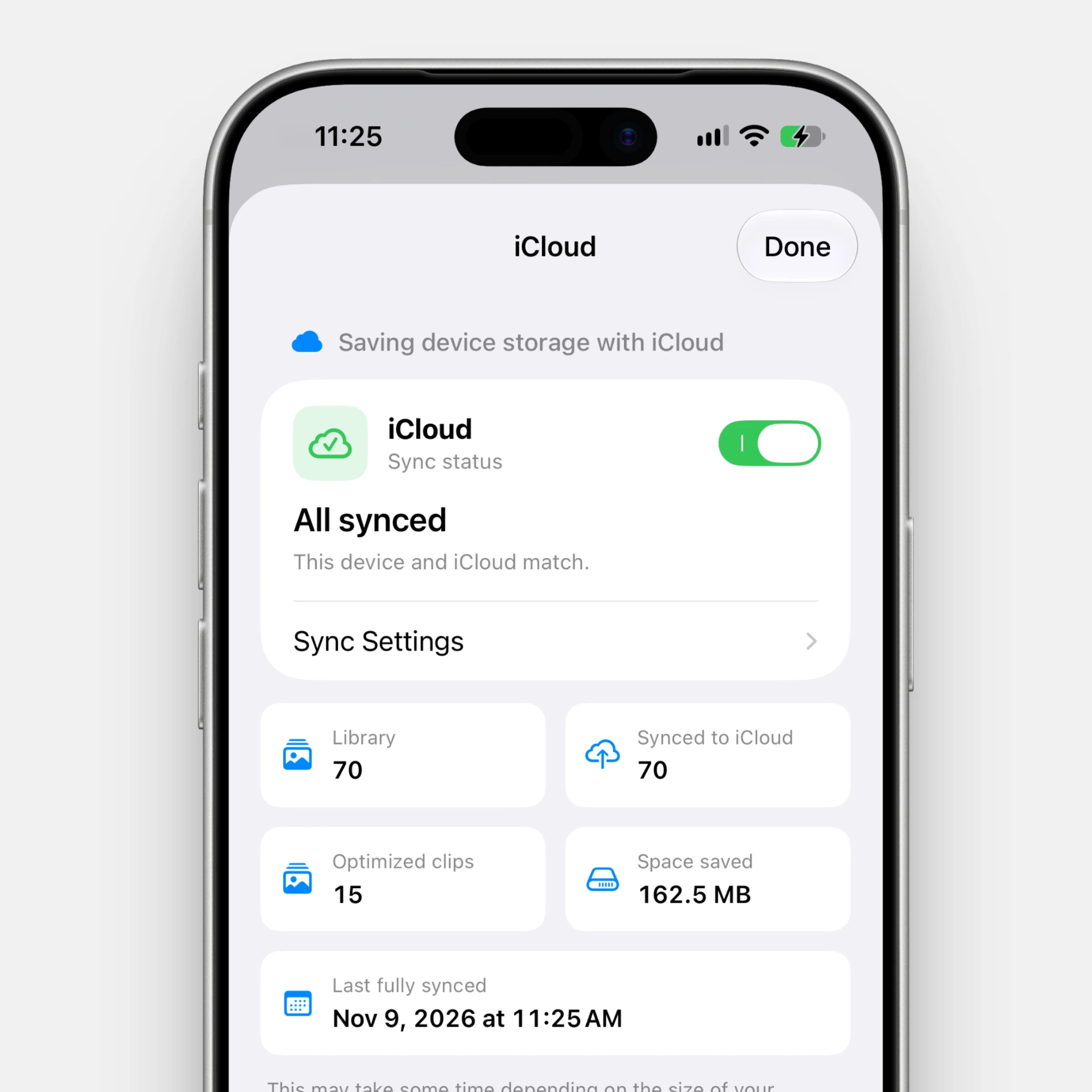
Go to Settings → iCloud to see Clips Saving Space and Space Saved.
These figures describe the space currently saved by keeping originals in iCloud rather than on this device. They are not a cumulative total of all space ever freed up. Downloading originals again can reduce the space saved.
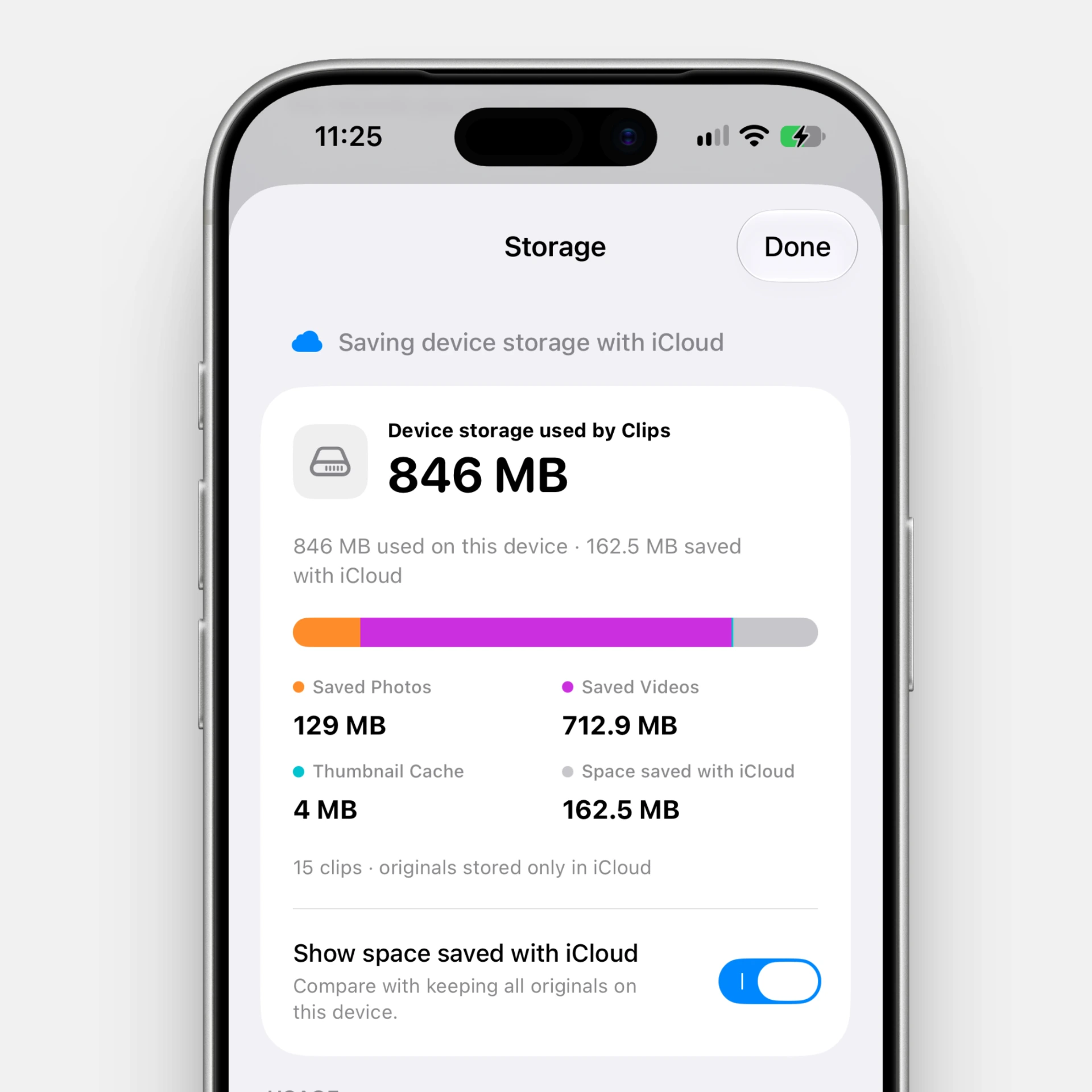
Settings → Storage shows the space currently used on the device. Turn on Include Space Saved with iCloud to compare it with the space you would use if all originals were stored locally.
The gray area in the chart is space saved with iCloud, not space currently used on the device. This switch only changes the chart display; it does not run optimization.
This switch may not appear when you keep originals locally or when iCloud sync is unavailable.
Frequently asked questions
Why is an old clip not being optimized?
Time alone does not determine eligibility. A clip may stay on the device if its iCloud original cannot be confirmed, related work is still underway, or it is in the Keep Forever folder.
Automatic also gives downloaded originals extra protection so they are not removed again right away. Maximum Savings does not use this extra protection; it uses the selected period and original checks.
Are only clips also saved in Photos optimized?
No. Any eligible original in Clips can be optimized, whether or not it was saved separately in Photos.
Clips storage optimization does not also delete photos or videos saved separately in Photos.
Does optimization reduce iCloud storage use too?
This feature frees up storage on the current device. Originals remain in iCloud, so it does not reduce iCloud storage use.
I want to download the originals again
Open just the clips you need, or download all originals when switching to keeping originals on this device.
Key takeaways
- Unlike deleting clips, storage optimization removes only the originals on this device.
- Automatic uses 30 days by default, shortening this to 14 or 7 days when device storage is low.
- Maximum Savings uses a period you choose from 1 to 31 days.
- Space saved is the space currently saved by keeping originals off this device, not a running total.