
Tags
Tag photos to group them and find records faster.
What tags do
Tags classify photos in the gallery by purpose and make them easier to find later.
Use a short name and a distinct color to keep sets recognizable.
Create tags
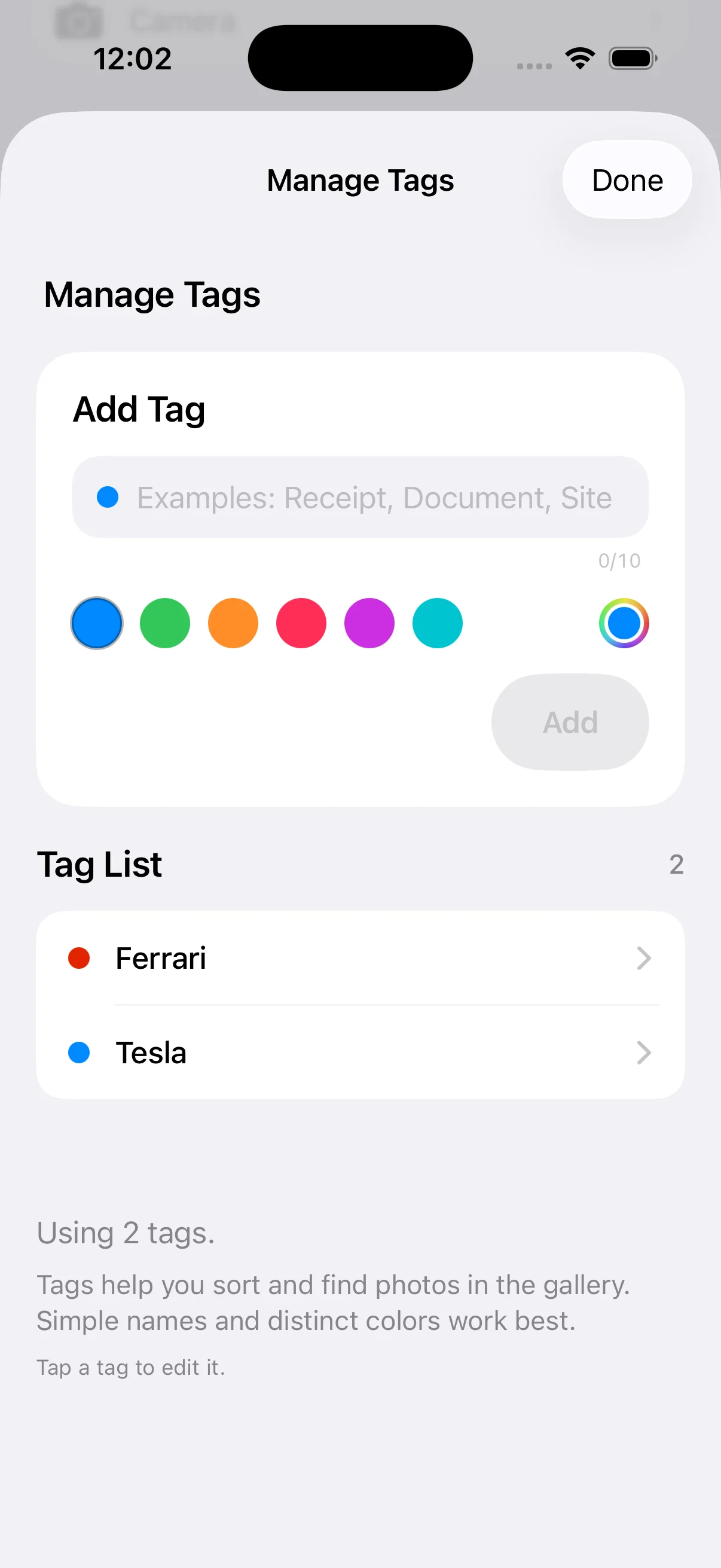
Open Settings → Tags to create and edit tags. On that page, choose a name and color for the tag you want to create.
Tag the clip you are viewing
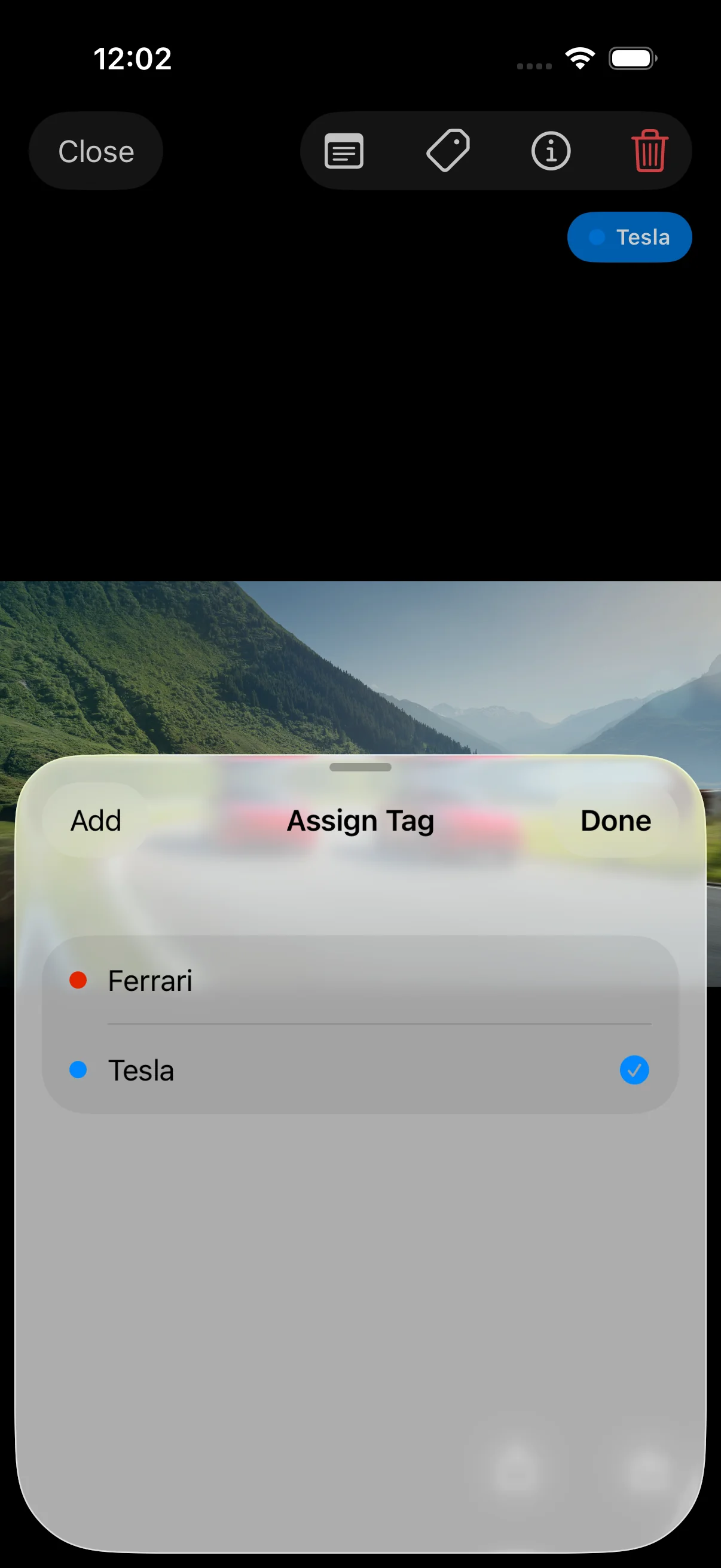
While viewing a clip, tap the tag button—the second item in the top-right toolbar—to attach a tag. If needed, tap Add at the top left of the sheet to create a new tag right away.
Tag several clips at once
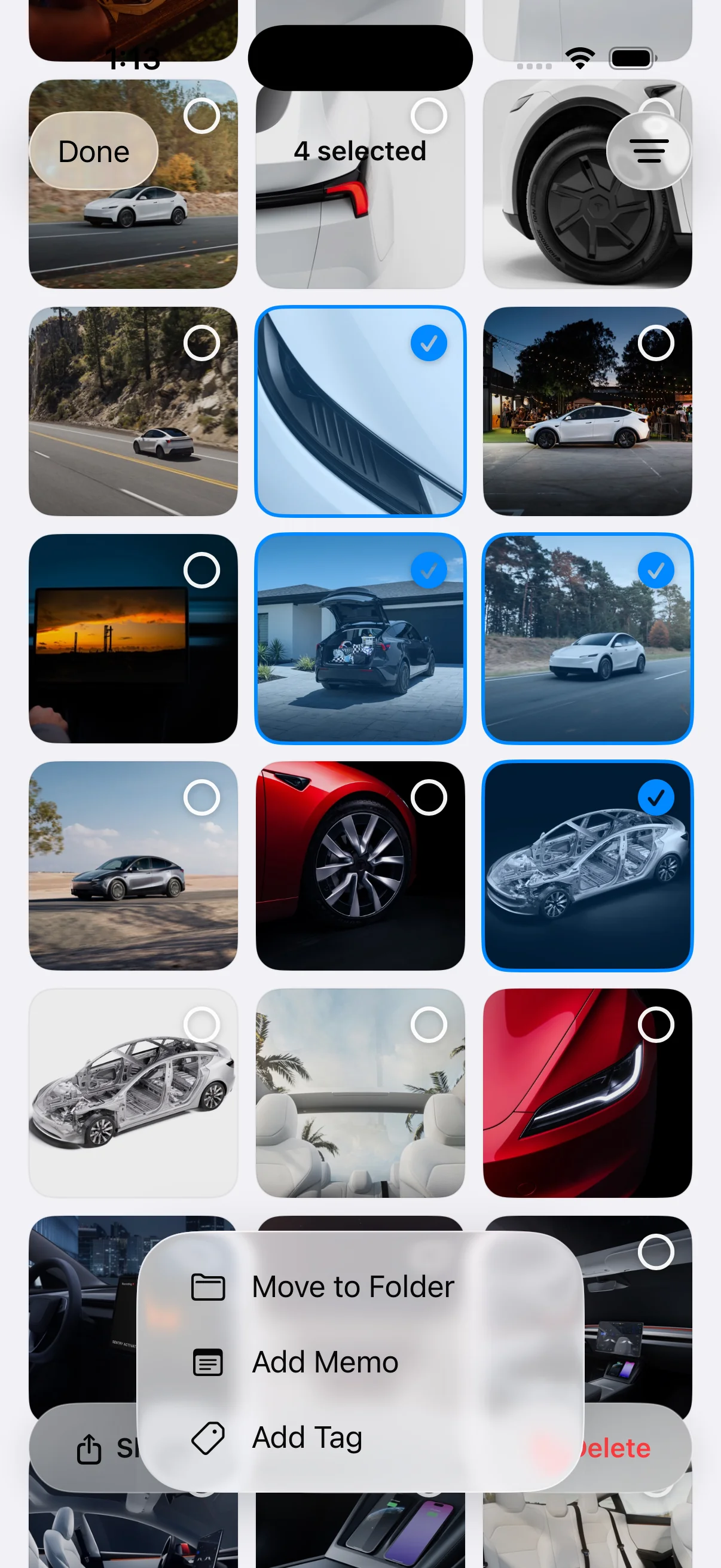
To apply the same tag to several clips at once, open Select in the top-right of the gallery grid and set tags in one go.
In select mode, choose the clips you want to tag.
After selecting, tap Edit at the bottom, open the options, and choose Add tag.
Then pick the tag you want and add it.
Key takeaways
- Preserve context with tags.
- Colors and names make groups scannable.
- Future search upgrades will increase what you can do with tags.