
Memos
Add a note to each photo so you don’t forget the situation or context, and can find it again easily.
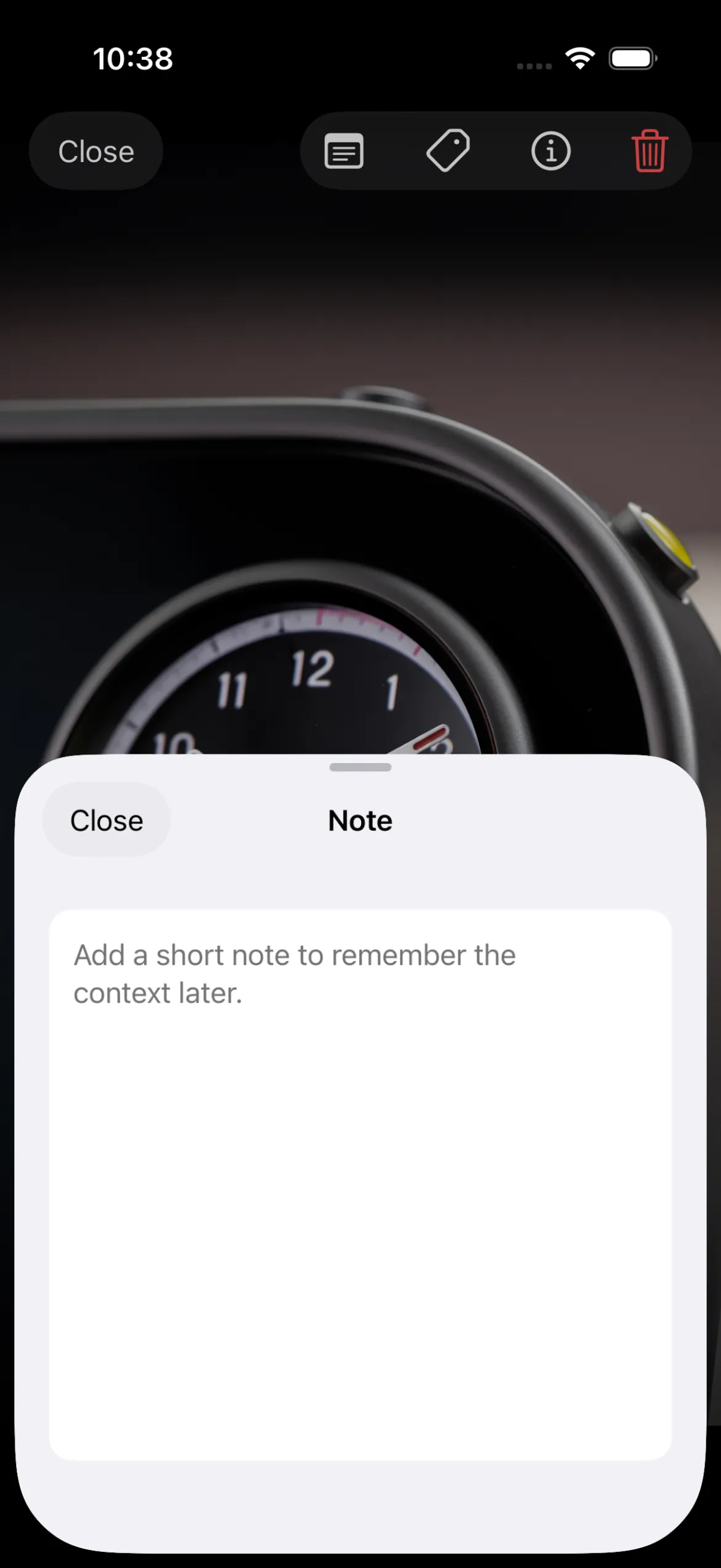
Add a memo while viewing a photo
On the photo viewer, tap the first memo button in the top-right toolbar to open the memo sheet.
You can leave a memo on each photo; memo data is stored per photo.
Jot down what to remember or follow-up actions to make reviews more efficient.
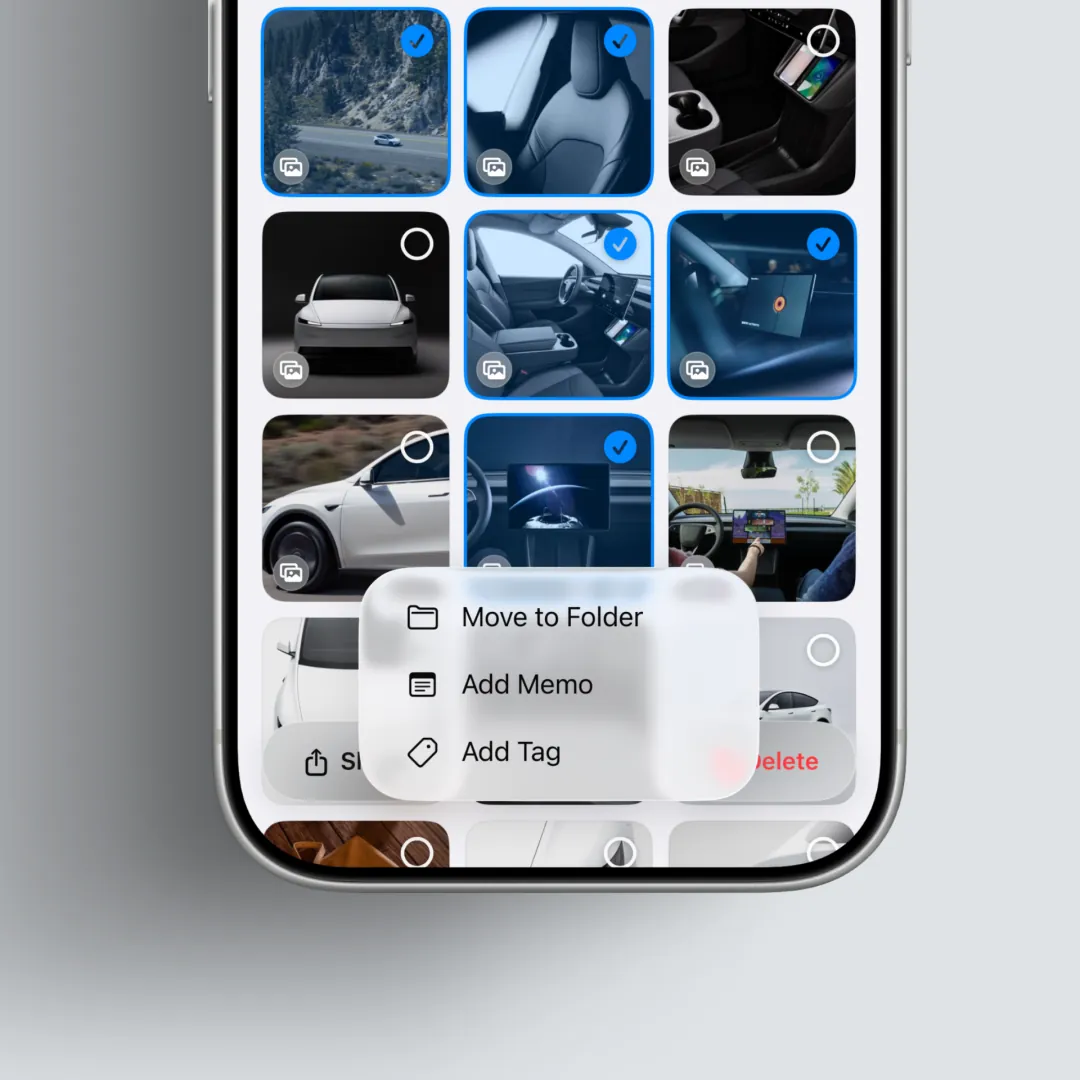
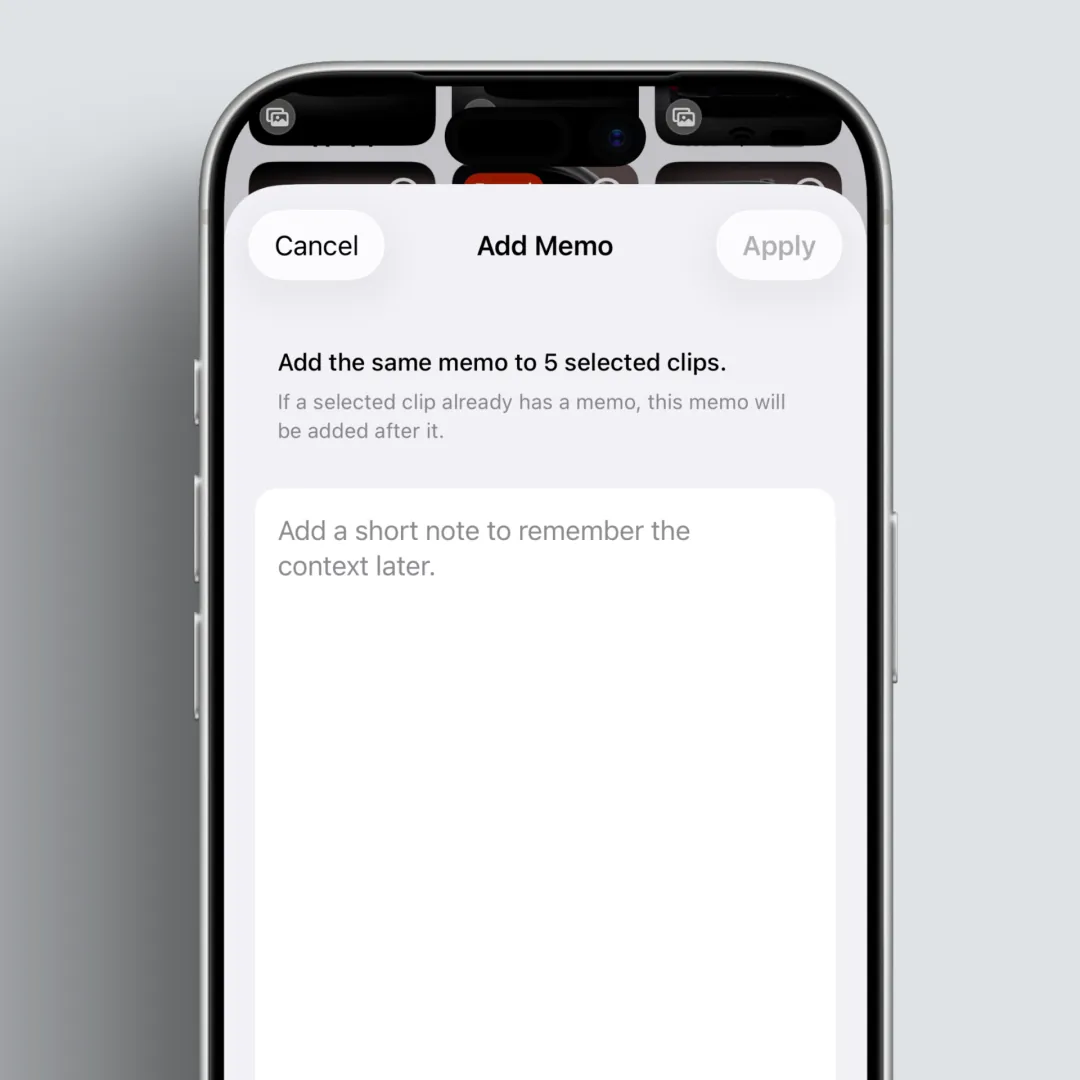
Add the same memo to several clips at once
In the gallery grid, tap Select to enter select mode and add the same memo to several clips at once. Tap Select, choose the clips that should get the same memo, then tap Edit at the bottom and Add memo to open the memo sheet. Enter the memo and tap Apply to apply it to the selected clips.
If a clip already has a memo, the new text is added on the next line.
After a memo is added
When a memo is added, a dot appears on the first memo button in the top-right toolbar so you can see whether a memo is present.
Key takeaways
- You can add text context to each photo.
- Less reliance on memory, better continuity at work.