
Export work photos
Export clips from Clips to the system Photos app
Export sends images that exist only in Clips into Photos so you can use them in other apps.
(In Clips, one photo or video is called a “clip.”)
When to export work photos
- When you need images or videos in another app
- When you want to move them to Photos
- When you used Clips for silent capture
Export the clip you are viewing
You can export the photo you are viewing with the steps below.
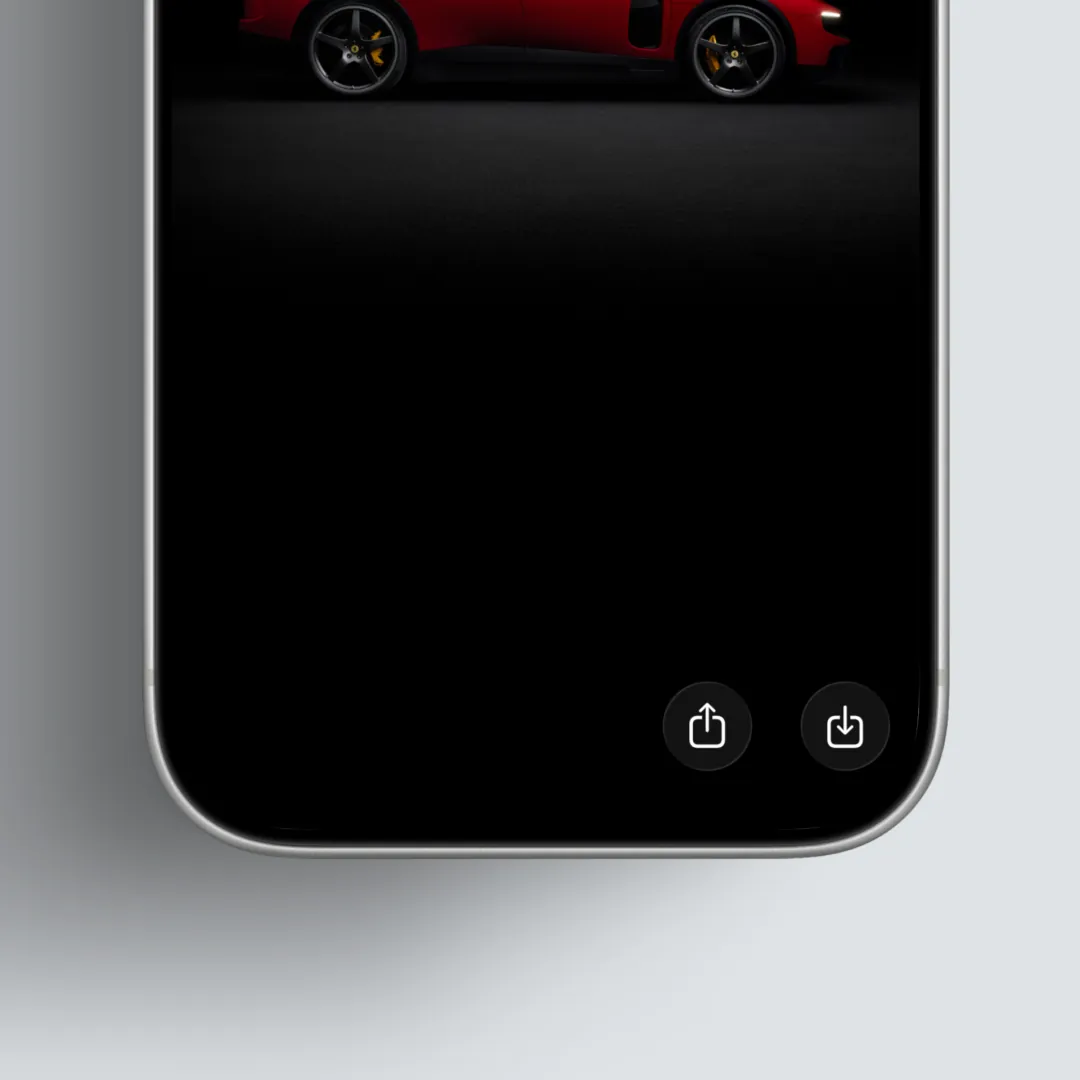
While viewing a single clip in detail, tap the bottom-right button to save it to Photos.
Export several from the gallery grid
In the gallery grid you can select multiple items and send them to Photos at once.
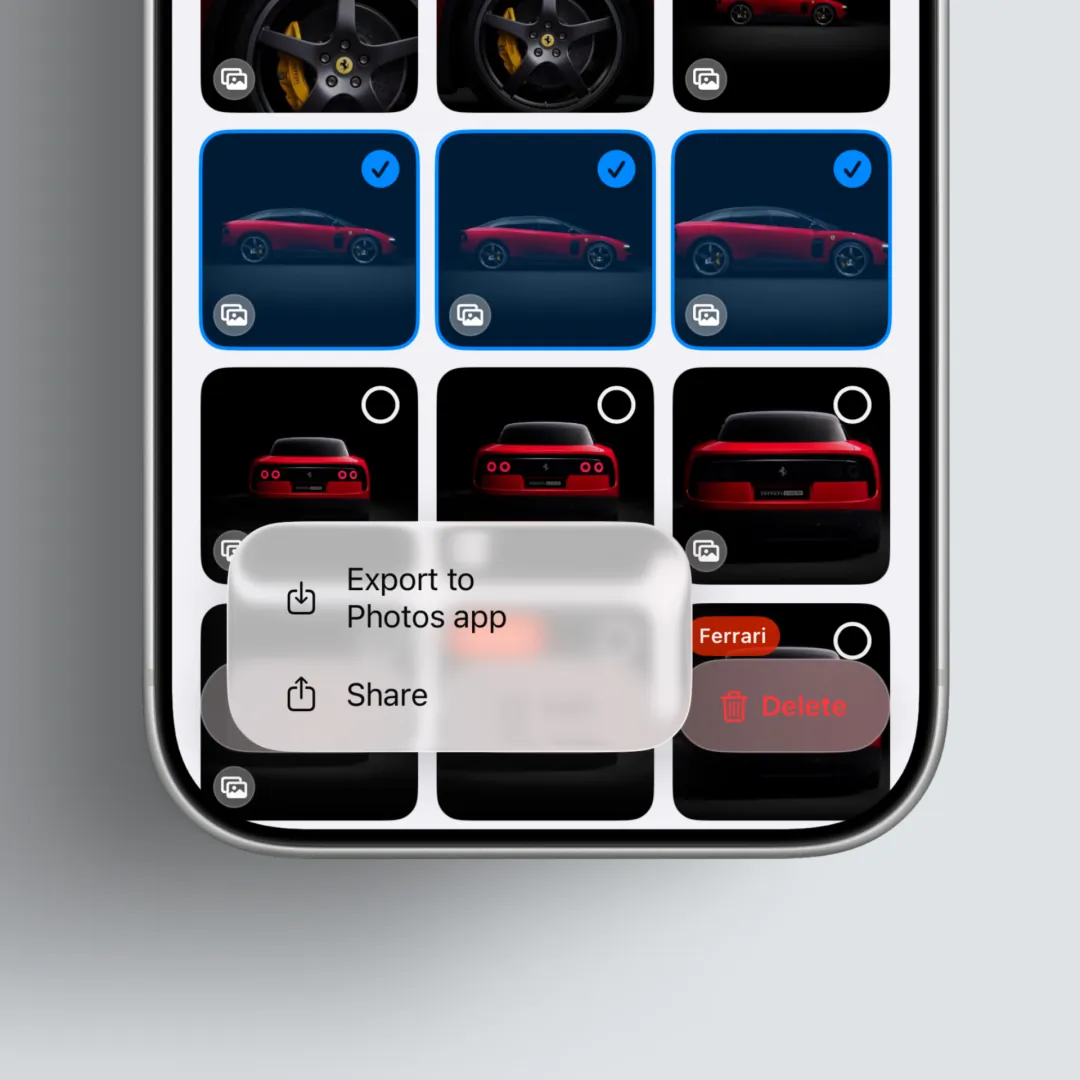
Tap Select in the gallery grid, then choose the images to export.
Tap the Share button on the bottom left to open sharing options.
Tap “Export to Photos” to send the images to Photos.
FAQ
I sent it to Photos—where is it?
Open the iPhone Photos app and check Library or Recents near the top.
Does Clips still keep the photo?
Sending to Photos is like adding a copy to the library. When you delete in Clips, you may be asked whether to remove the matching photo in Photos.
It won’t export to Photos.
Check Settings → Privacy & Security → Photos → Clips and allow adding to Photos if you can.
Key takeaways
- You can export Clips-only images to the system Photos app.
- This feature is for using photos in other apps.
- After exporting to Photos, you can still manage and delete the Photos originals from Clips.