
Data guidesIncludes Plus
Organize with folders
Group clips into folders and manage them separately
How to sort clips into folders so they stay grouped by purpose.
Create a folder
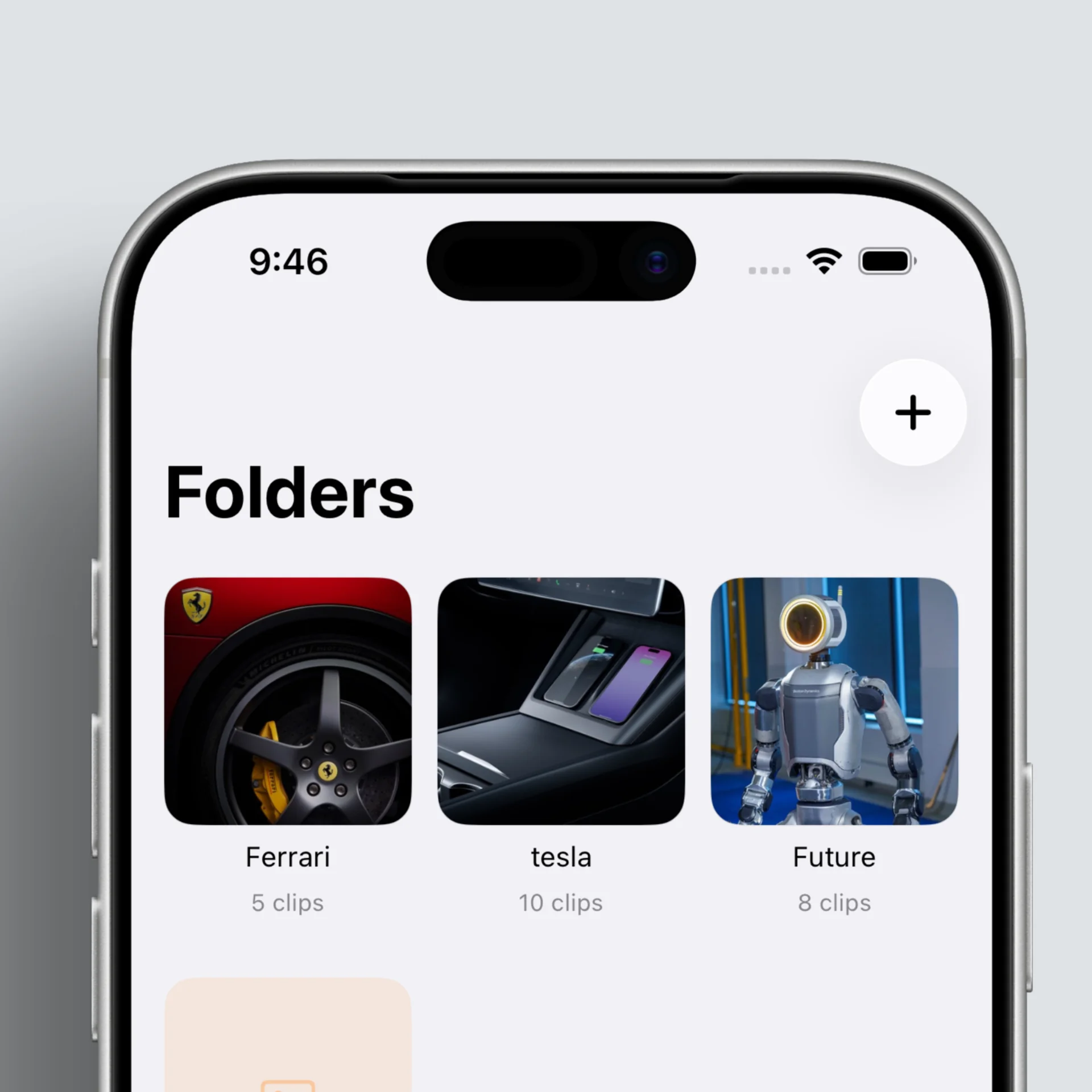
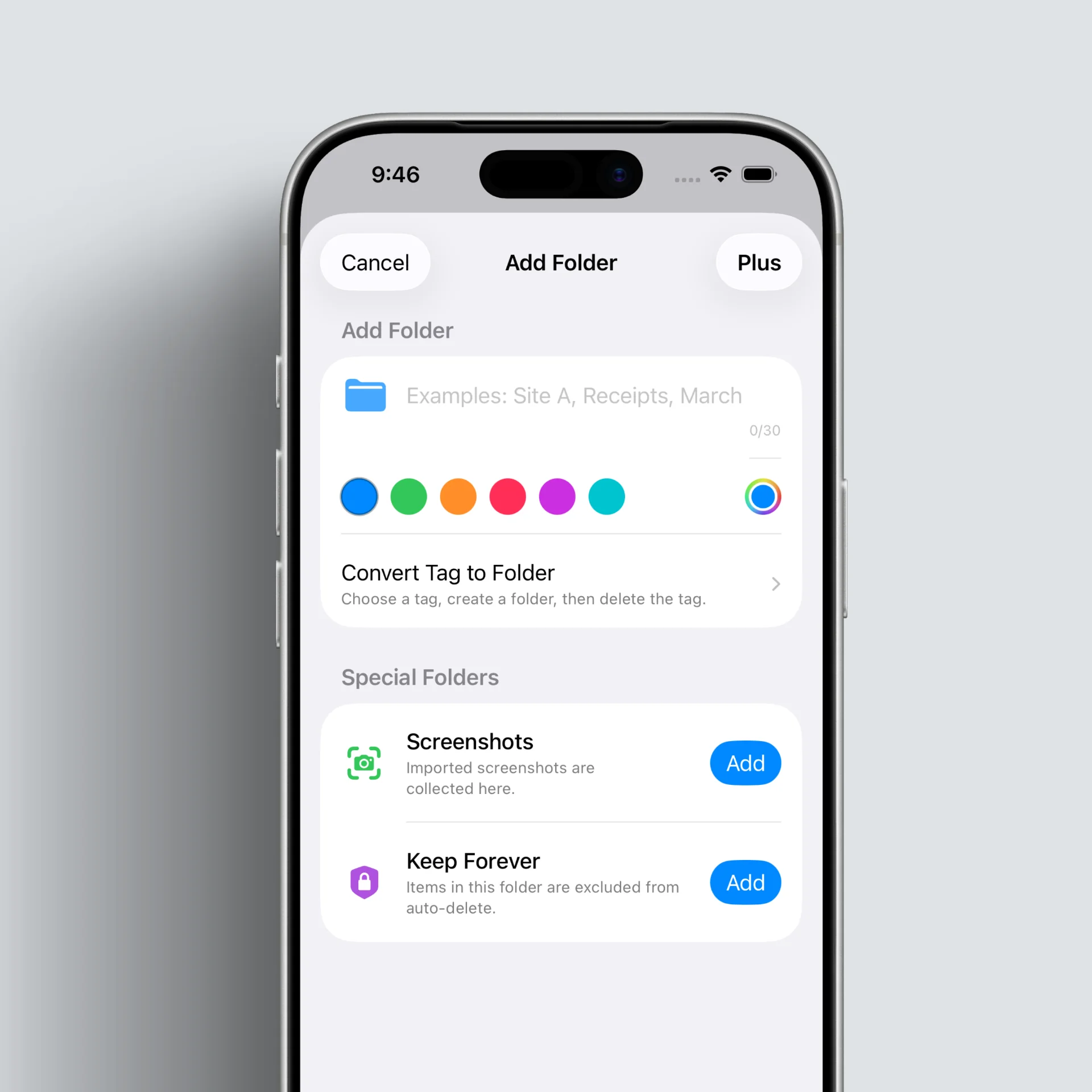
On the Folders page, tap Add at the top right to open the add-folder sheet. Enter the folder details on that sheet and tap Add to create it.
What are special folders?
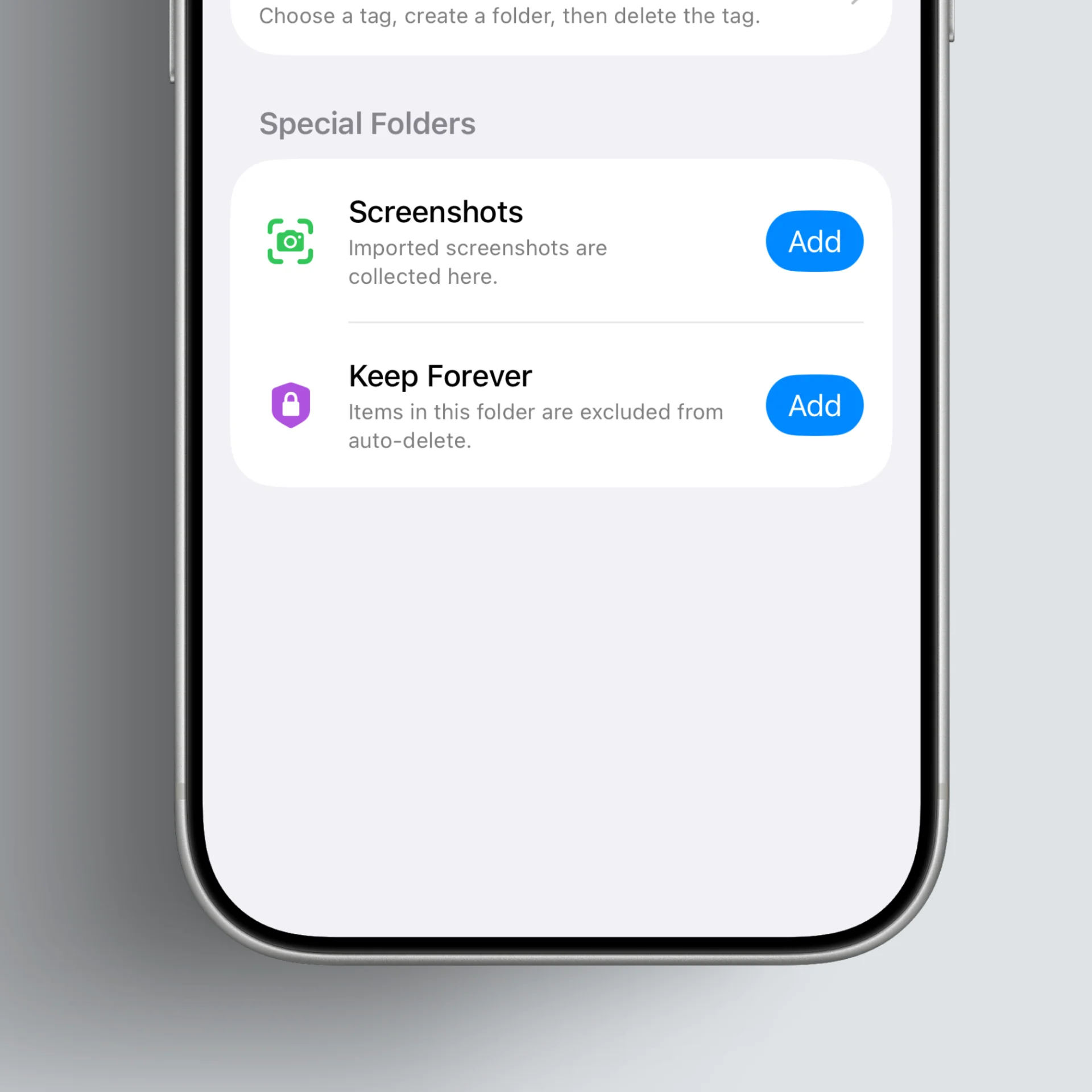
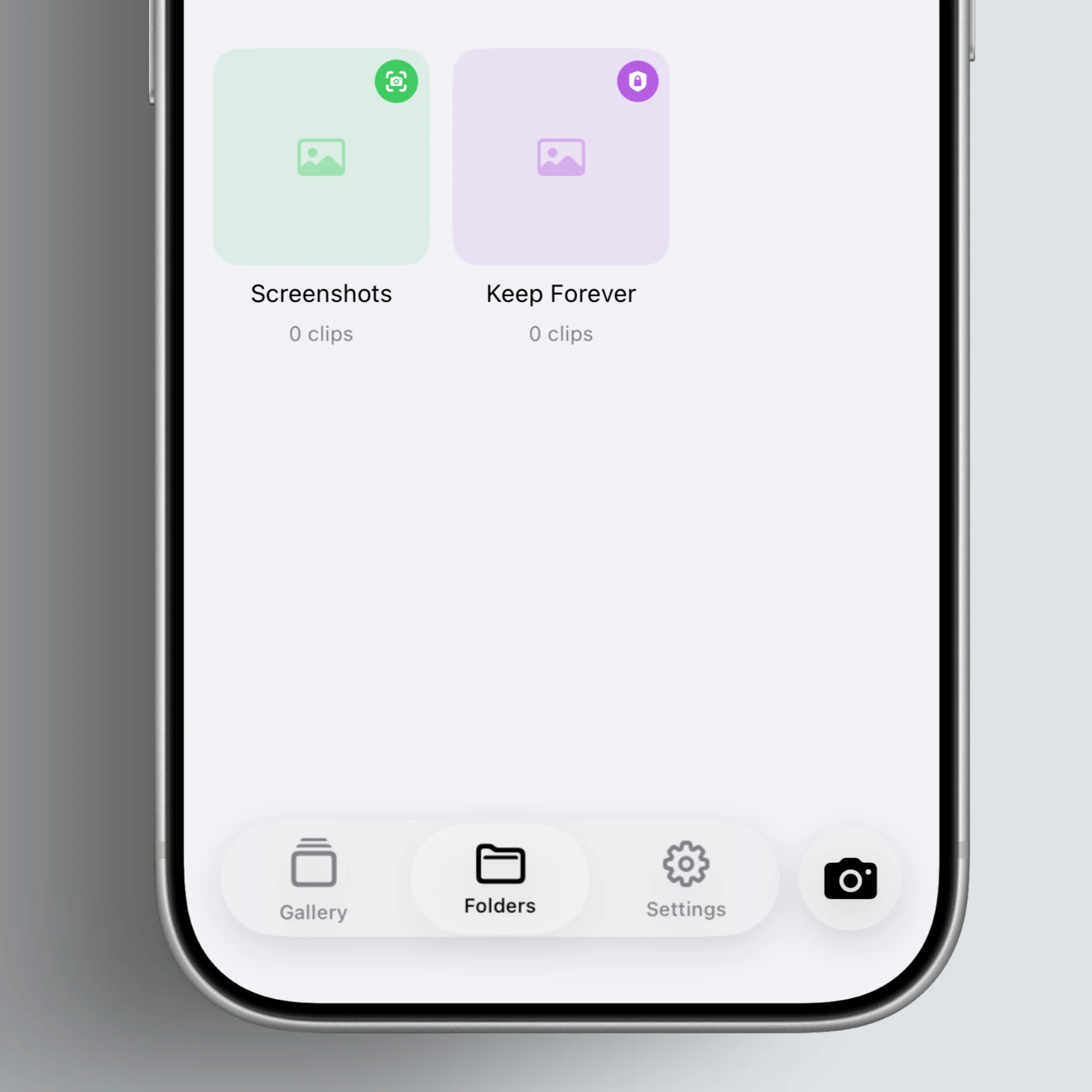
Special folders have extra behavior. Folders currently include two: Screenshots and Protect from auto-delete.
- Screenshots folder: Used when you import only screenshots with Import work photos / videos.
- Protect from auto-delete folder: Collect photos and videos you want to keep even after the auto-delete period. Items in this folder are excluded from auto-delete.
Edit or delete a folder
Press and hold the folder you want to edit or delete to see those options.
- Edit opens a sheet so you can change that folder.
- Deleting a folder does not remove photos or videos; it only removes the folder grouping.
Key takeaways
- You can group clips into folders.
- Splitting records by work purpose makes them easier to find.